Setup guide

Getting started with Mary

Everything you need to set up Mary on an Android phone — from installing the app to contacts, reminders, and call settings.

1 Step 1

Install the app

Download Mary from the Google Play Store on the Android phone you're setting up for your loved one.

  • 1 Open the Google Play Store on the phone
  • 2 Search for Mary — Simple Phone Launcher and tap Install
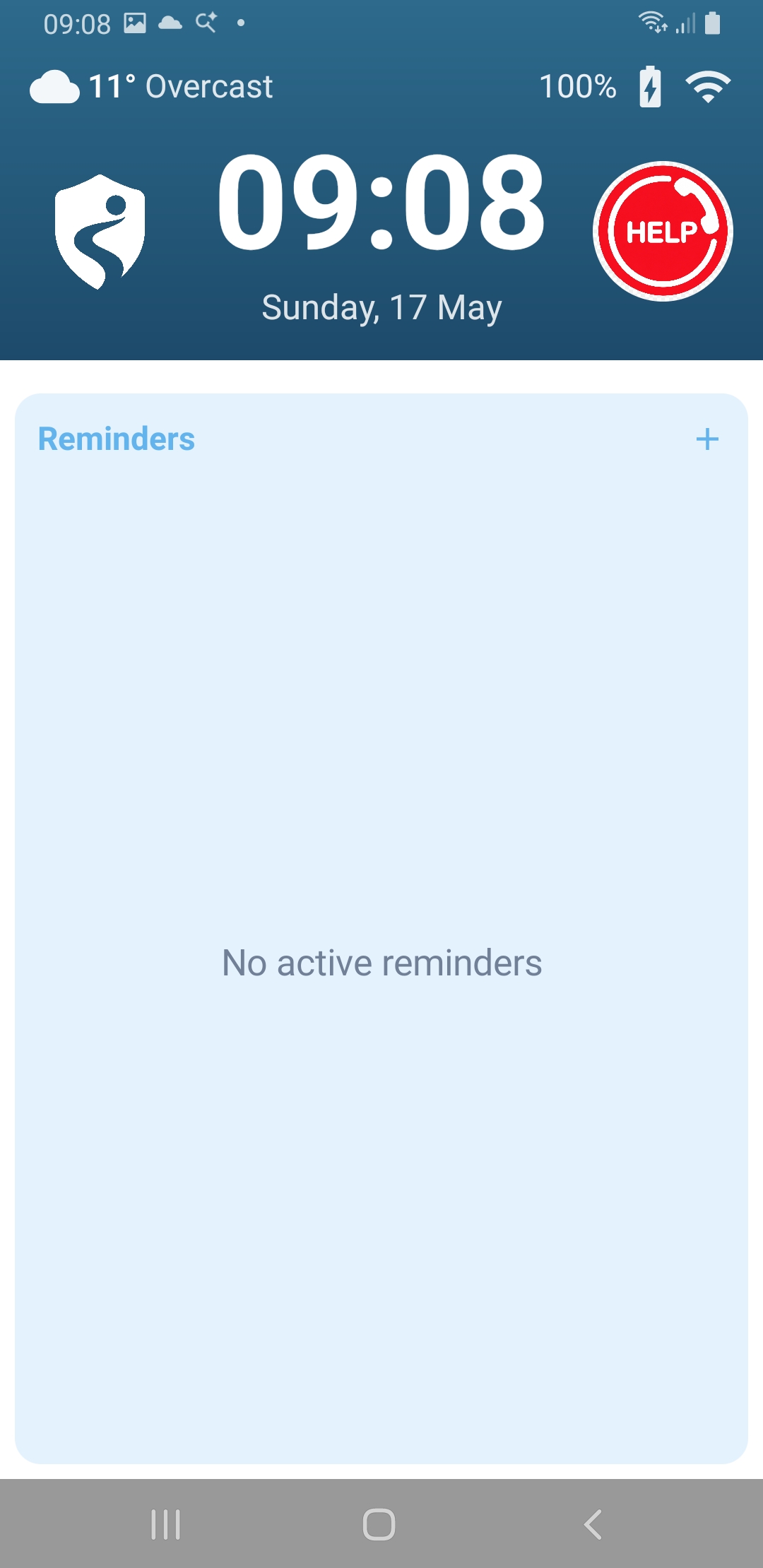
  • 3 Once installed, open the app — you'll be taken straight to the home screen

Mary works on any Android phone running Android 8.0 or later. No specific device is required.
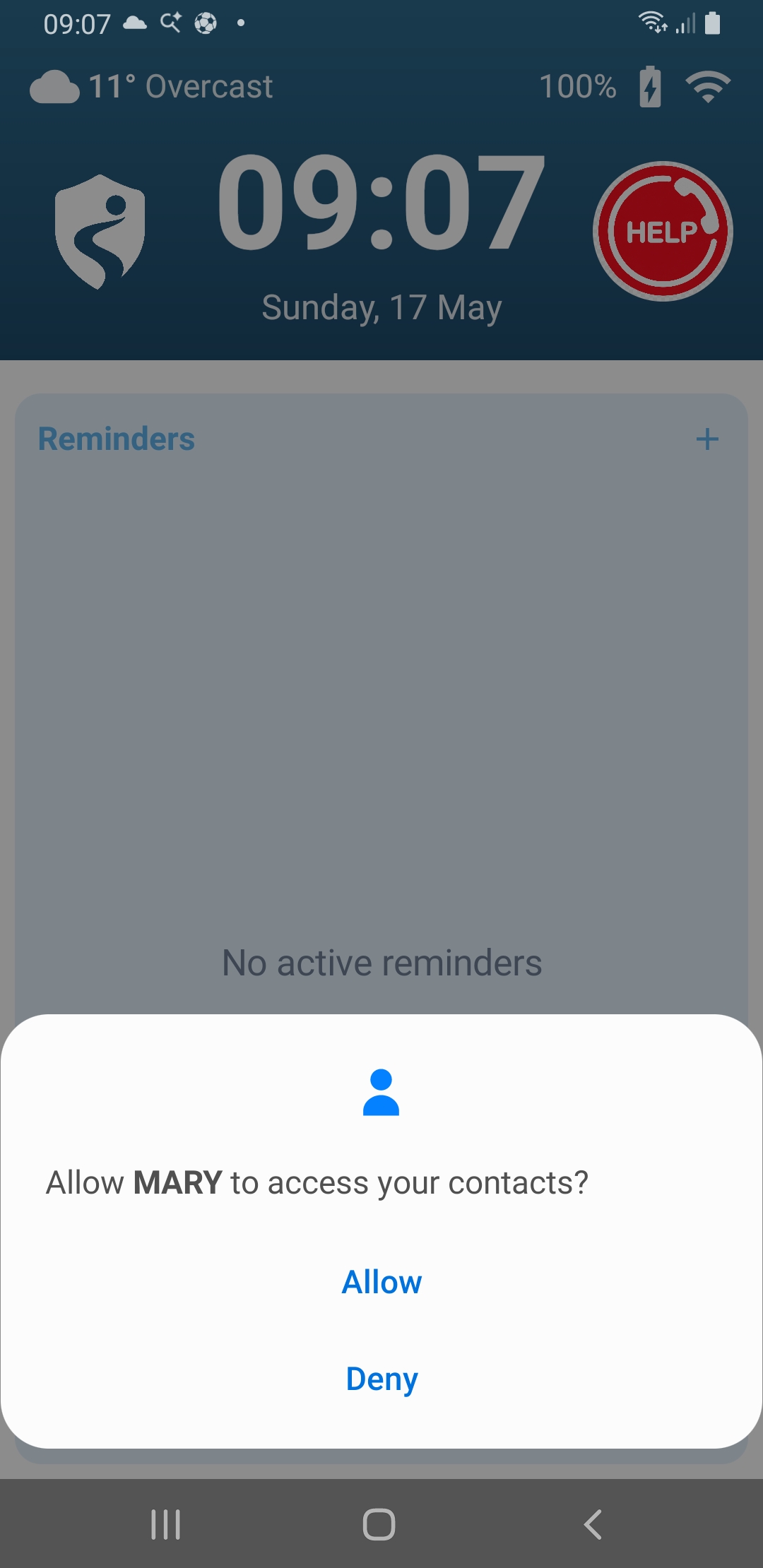
Android asking permission for Mary to access contacts
Mary home screen after first install

2 Step 2

Set Mary as the default home screen app

Setting Mary as the default launcher means it opens automatically whenever the home button is pressed, keeping everything simple and consistent.

  • Open Android Settings
  • Tap Apps (sometimes labelled Applications)
  • Tap Default apps (may be inside a menu or under Advanced)
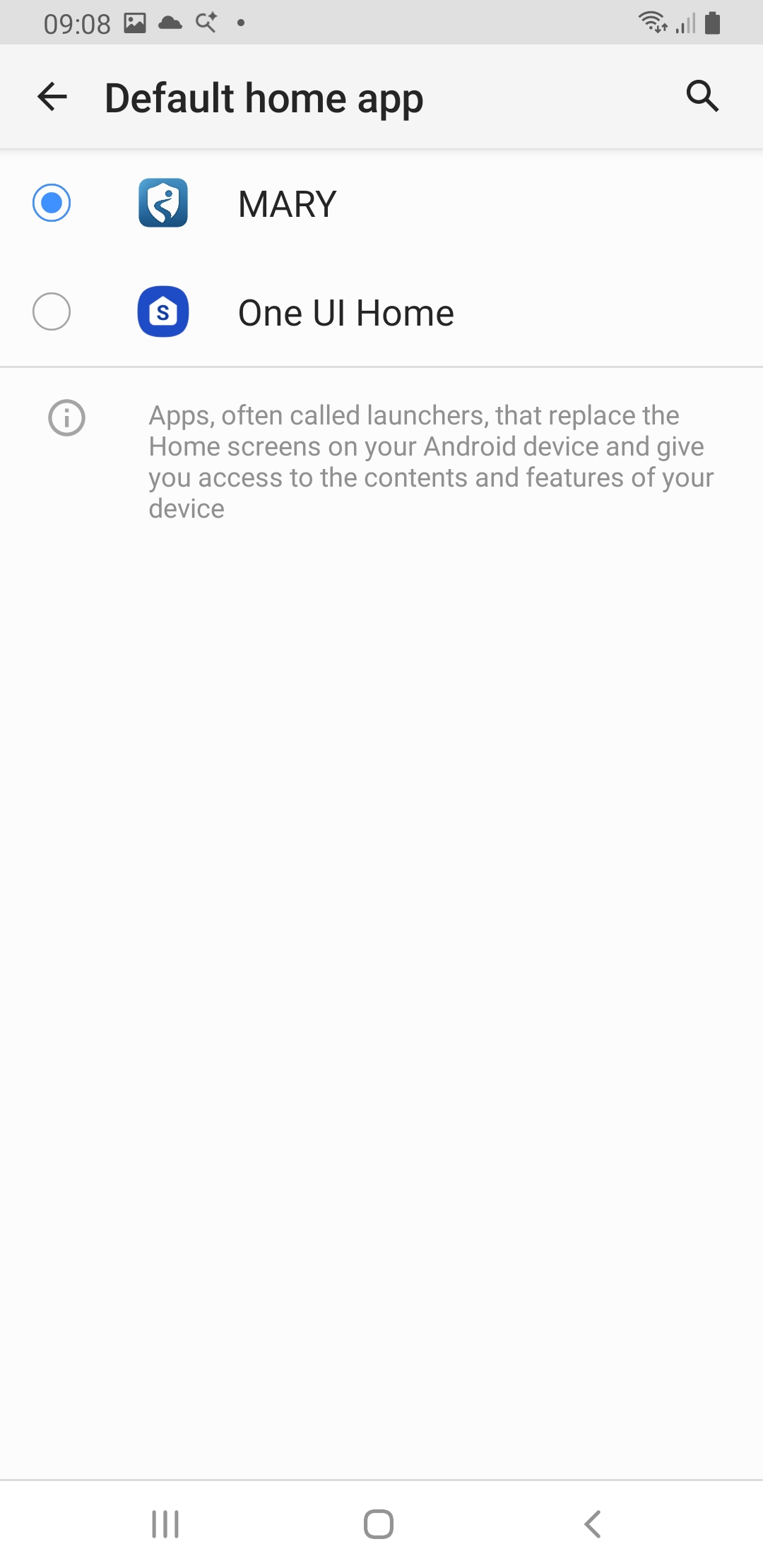
  • Tap Home app
  • Select Mary from the list

The exact path varies by manufacturer. On Samsung devices, look for Default apps directly in the main Settings menu. On Google Pixel phones, it's under Apps → Default apps.

Android Default home app screen with MARY selected

3 Step 3

Access caregiver settings

All of Mary's settings are managed through caregiver mode — a PIN-protected area that keeps configuration safe from accidental changes.

  • 1 On the Mary home screen, press and hold the Mary logo for a few seconds until the caregiver access screen appears
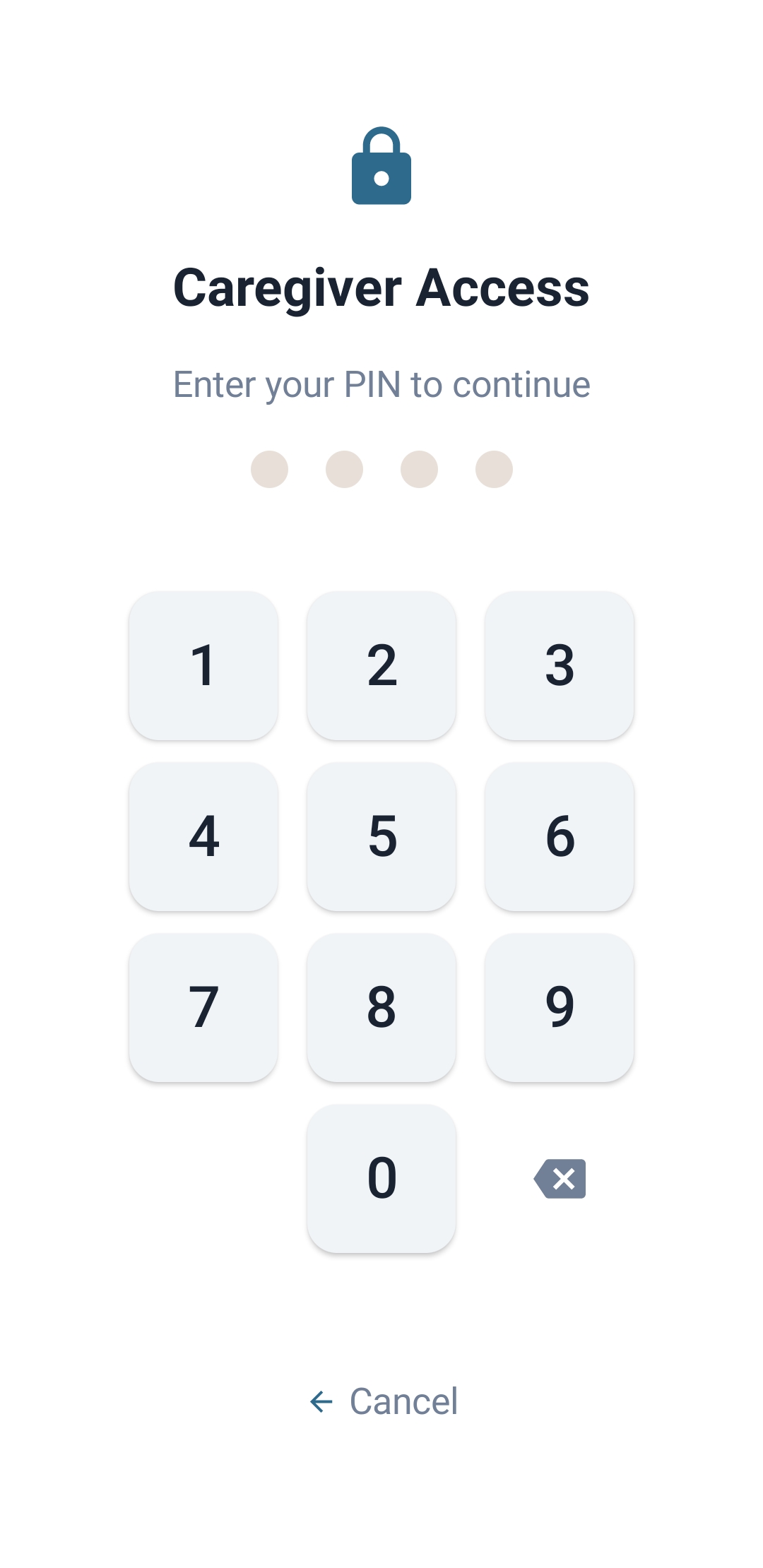
  • 2 Enter your caregiver PIN — the default is 1234
  • 3 You're now in caregiver mode and can configure everything

Change the default PIN as soon as possible. You'll find this option inside the caregiver settings screen. Choose something memorable but not obvious.

Caregiver PIN entry screen

4 Step 4

Set up contacts

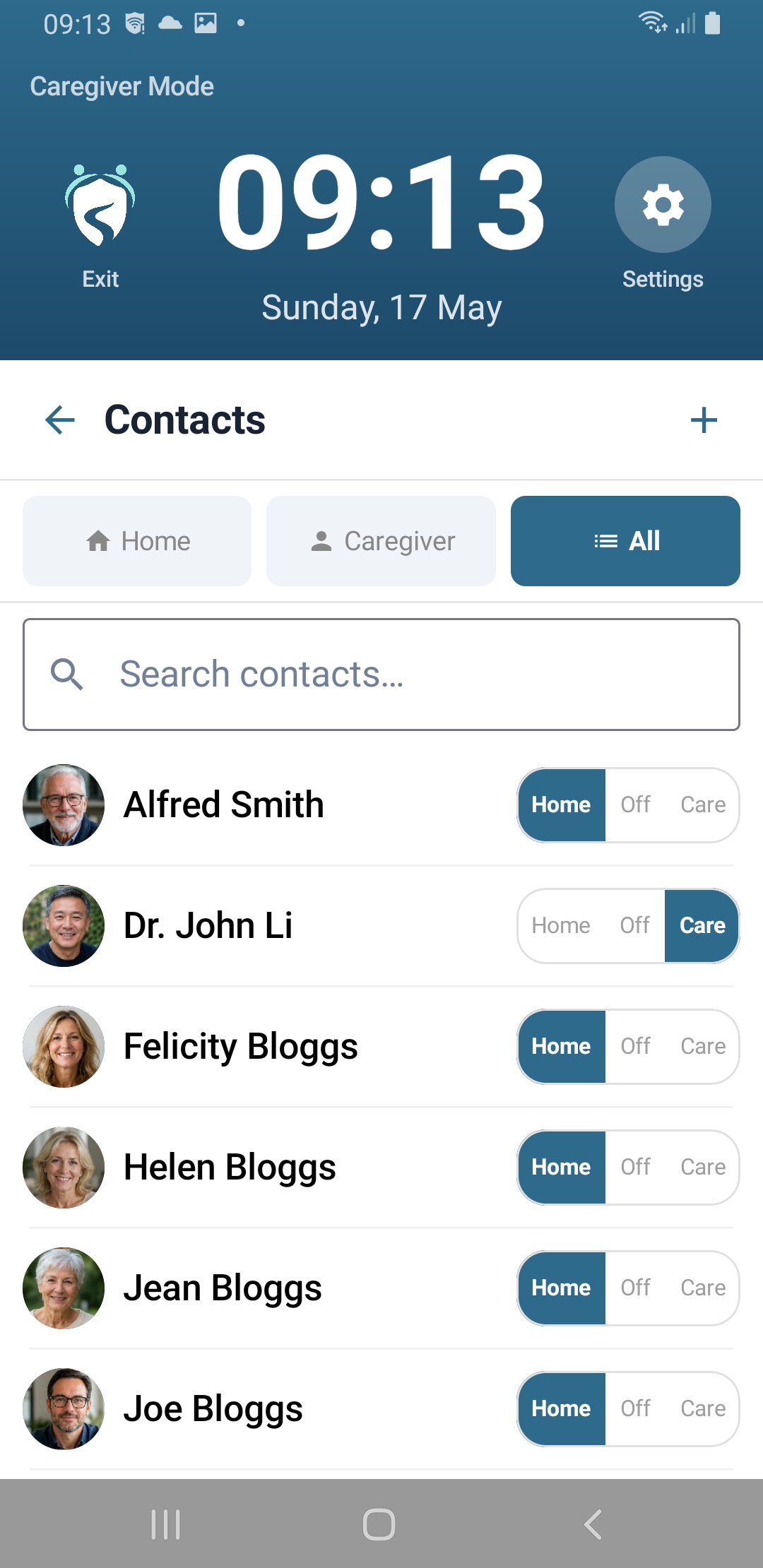
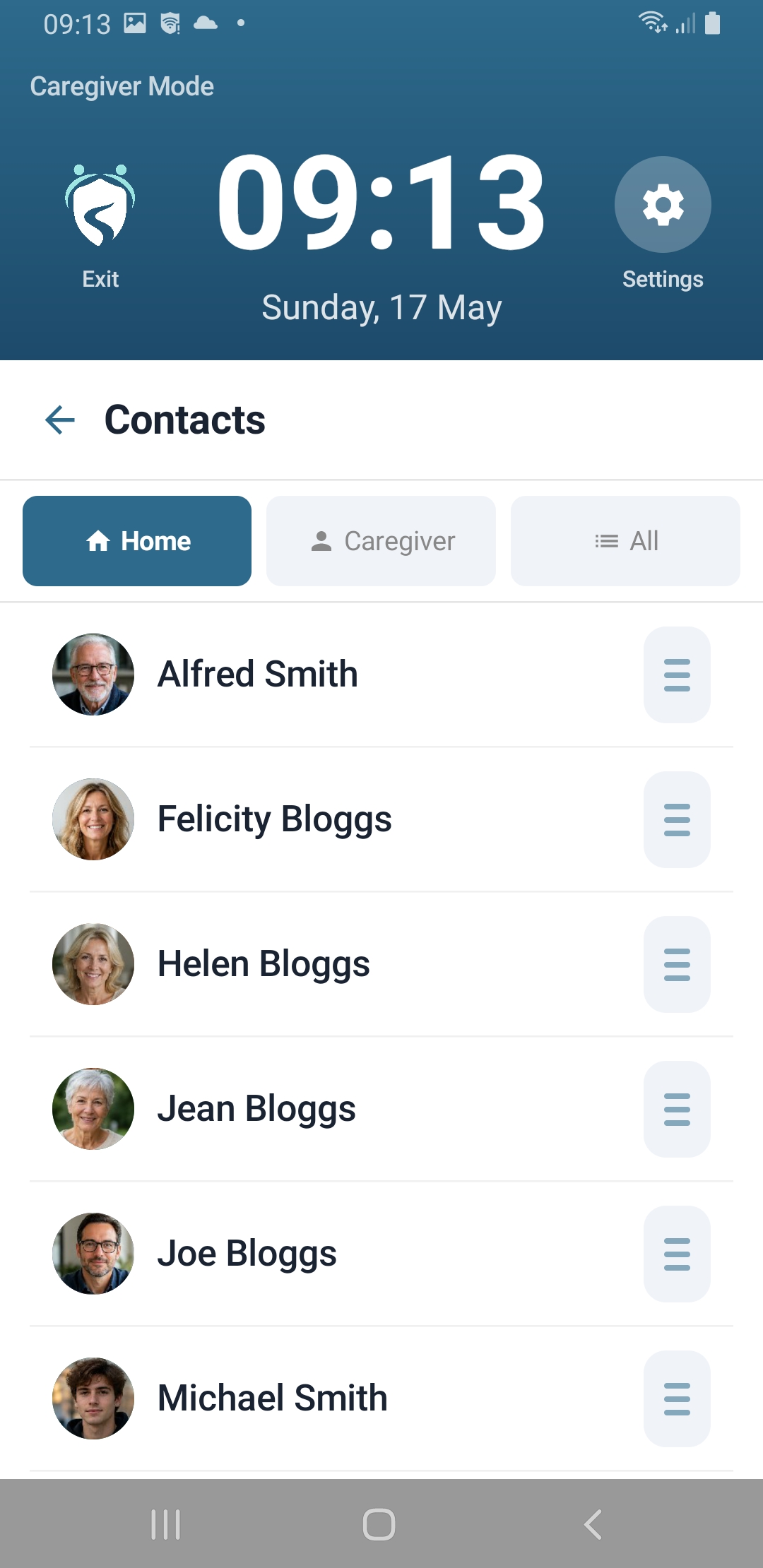
Trusted contacts appear as large, easy-to-tap buttons on the Mary home screen. Each contact shows a photo or their initials, making them instantly recognisable.

  • 1 In caregiver settings, tap Contacts
  • 2 Tap Add contact and choose from the phone's existing contacts, or enter details manually
  • 3 Add a photo if you have one — or Mary will use the person's initials automatically
  • 4 Arrange contacts in the order you want — put the most-called people first

A small number of large contacts works best — three to six is usually ideal. Fewer choices means less hesitation.

Contacts list showing Home, Off, and Care visibility options per contact
Home contacts tab showing contacts that appear on the home screen

5 Step 5

Choose which apps are visible

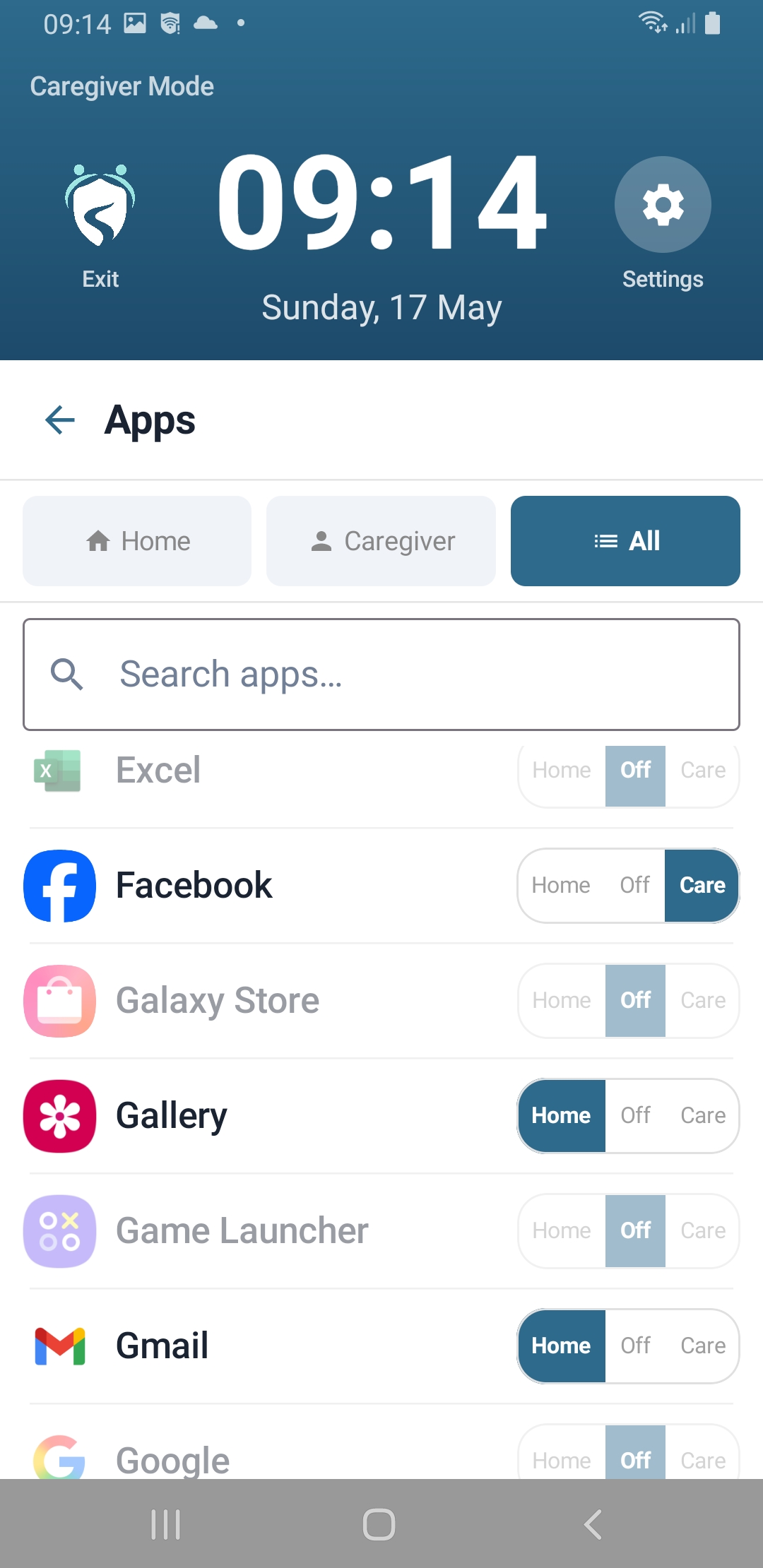
Mary only shows the apps you choose — everything else is hidden. This keeps the home screen clean and prevents the user from stumbling into unfamiliar apps.

  • 1 In caregiver settings, tap Apps
  • 2 Toggle on any apps you want to appear on the home screen
  • 3 Anything switched off is hidden from the user — it isn't uninstalled, just out of sight

Keep the list short. For many people, having no extra apps beyond calling is exactly right — you can always add more later.

App visibility settings showing Home, Off, and Care toggles

6 Step 6

Set up Call Assist and the HELP button

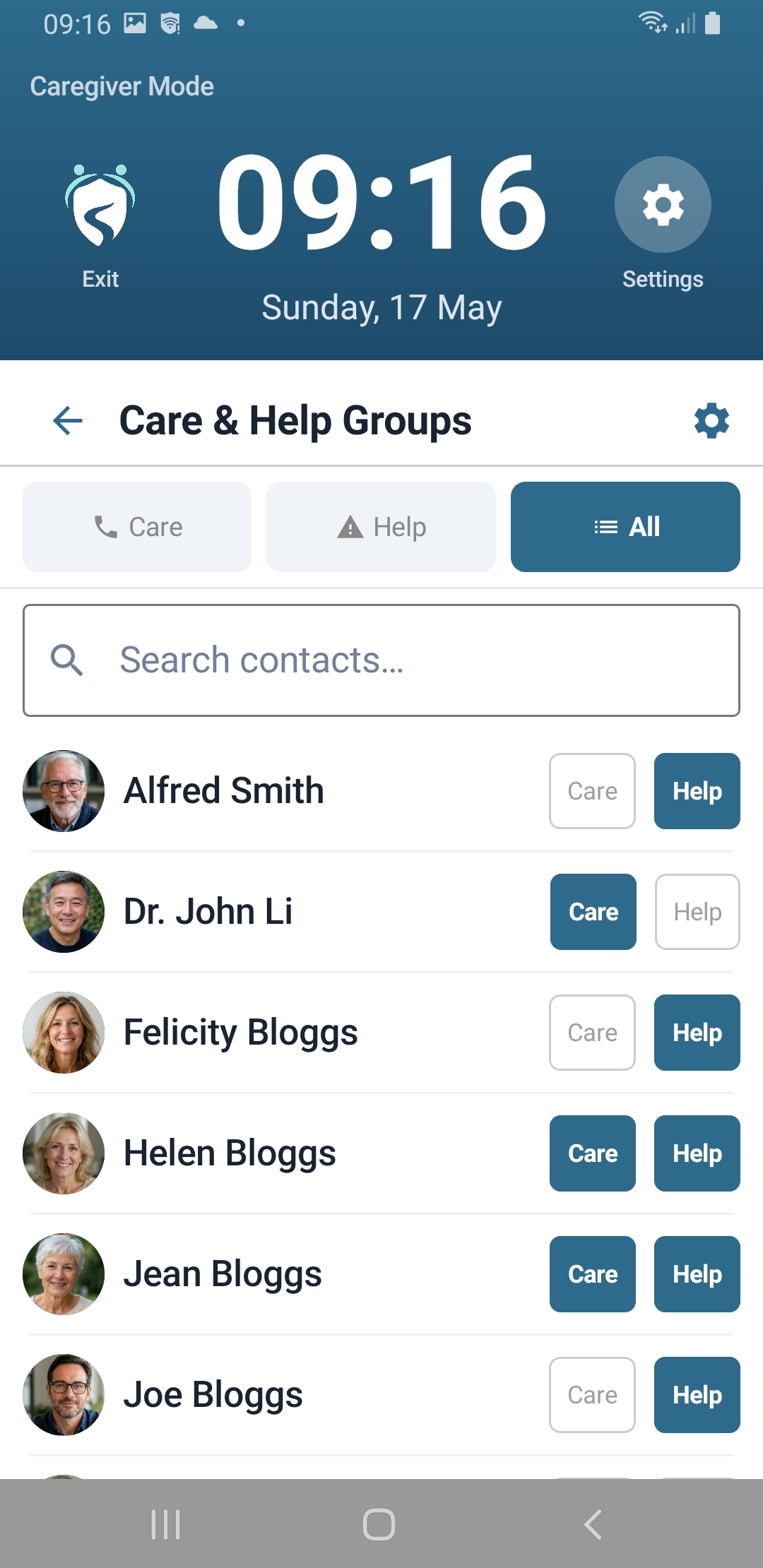
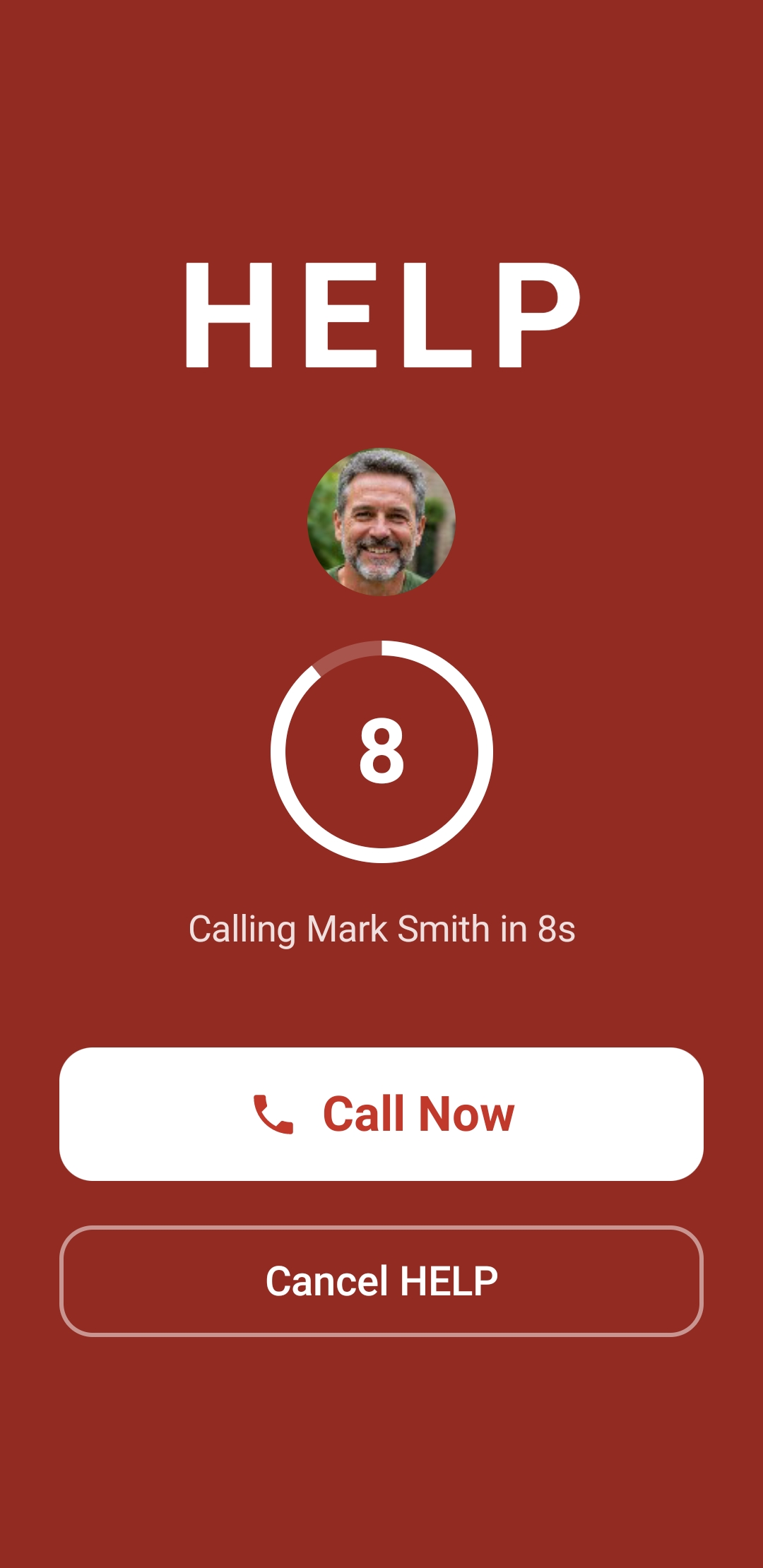
The HELP button lets the user quickly reach trusted contacts when they need assistance. Call Assist lets you set up a group of contacts to try in order — so if the first person doesn't answer, Mary tries the next.

  • 1 In caregiver settings, tap Call Assist
  • 2 Under HELP contacts, add the people who should be called when HELP is pressed
  • 3 Set the order — calls are made in sequence until someone answers

Important: Mary is not an emergency service. The HELP button calls the contacts you configure here — it does not contact 999 or emergency services.

Call Assist group configuration in caregiver settings
The HELP screen as the user sees it

7 Step 7

Set up reminders

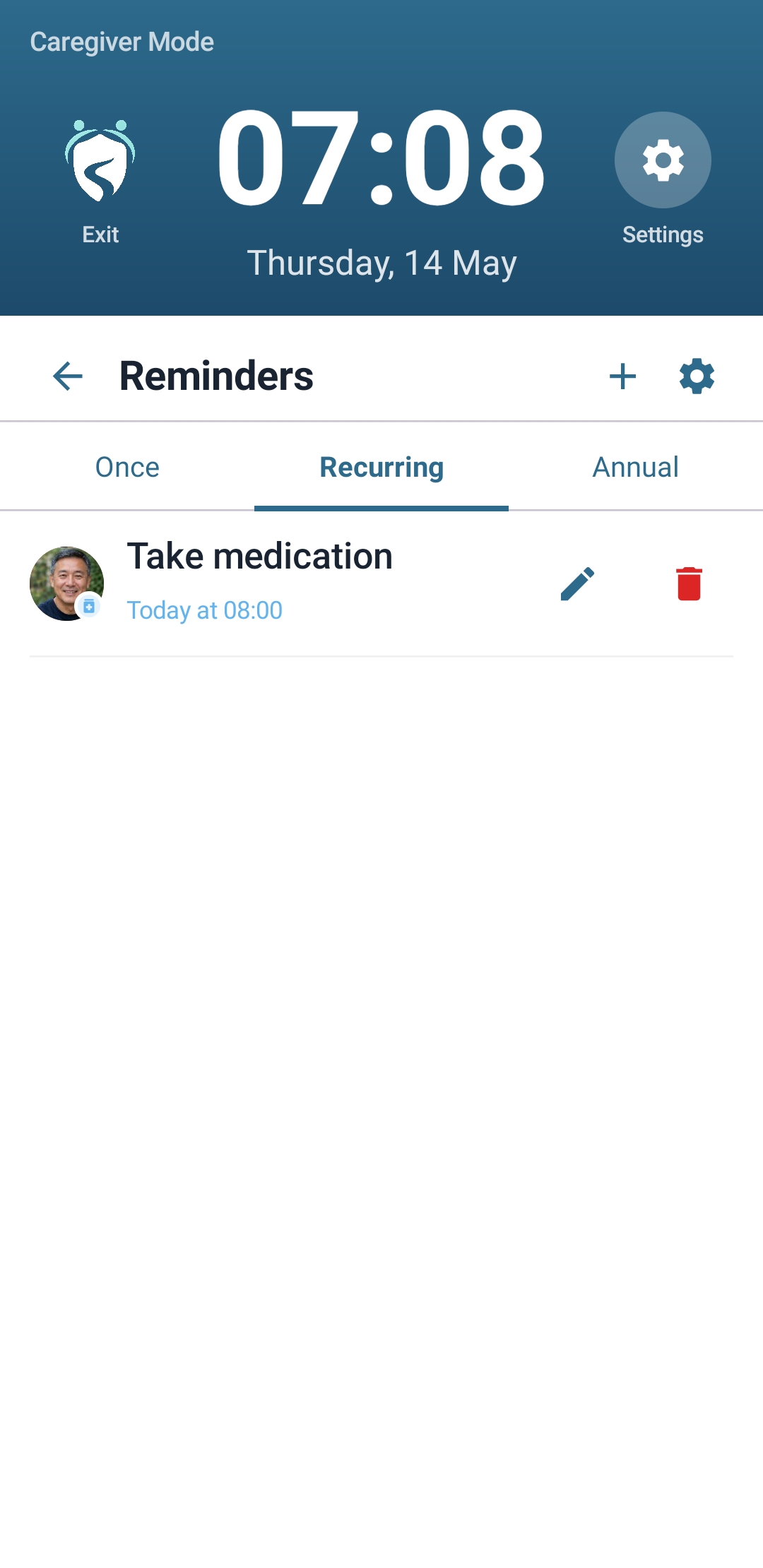
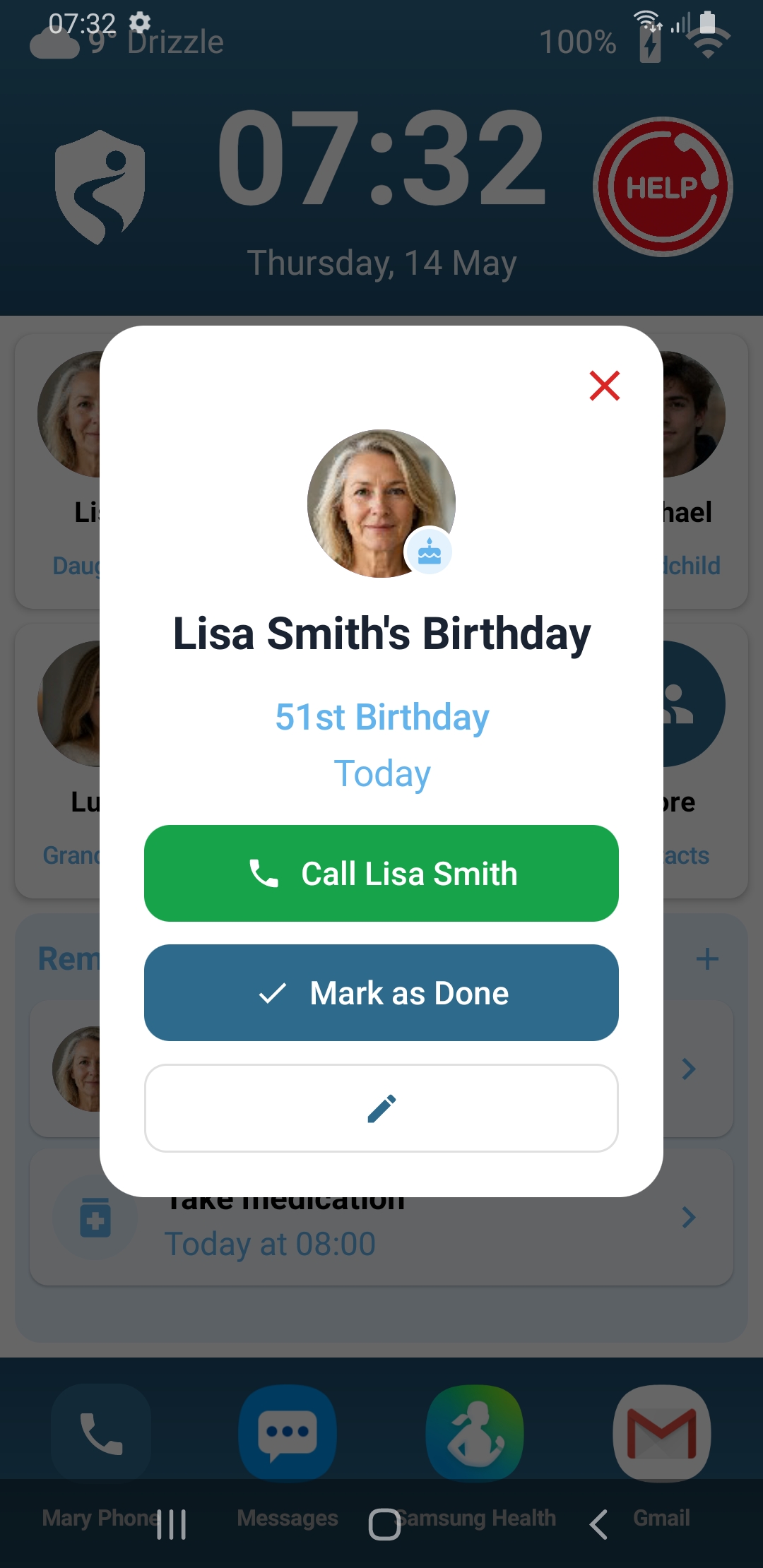
Mary can show gentle on-screen reminders for medication, appointments, or daily activities. Birthdays from the contacts list are picked up automatically.

  • 1 In caregiver settings, tap Reminders
  • 2 Tap Add reminder and set the message, time, and how often it repeats
  • 3 Reminders appear as a large overlay at the scheduled time — easy to see and dismiss
Managing reminders in caregiver settings
A birthday reminder appearing on screen

8 Step 8 — Optional

Block the notification and navigation panels

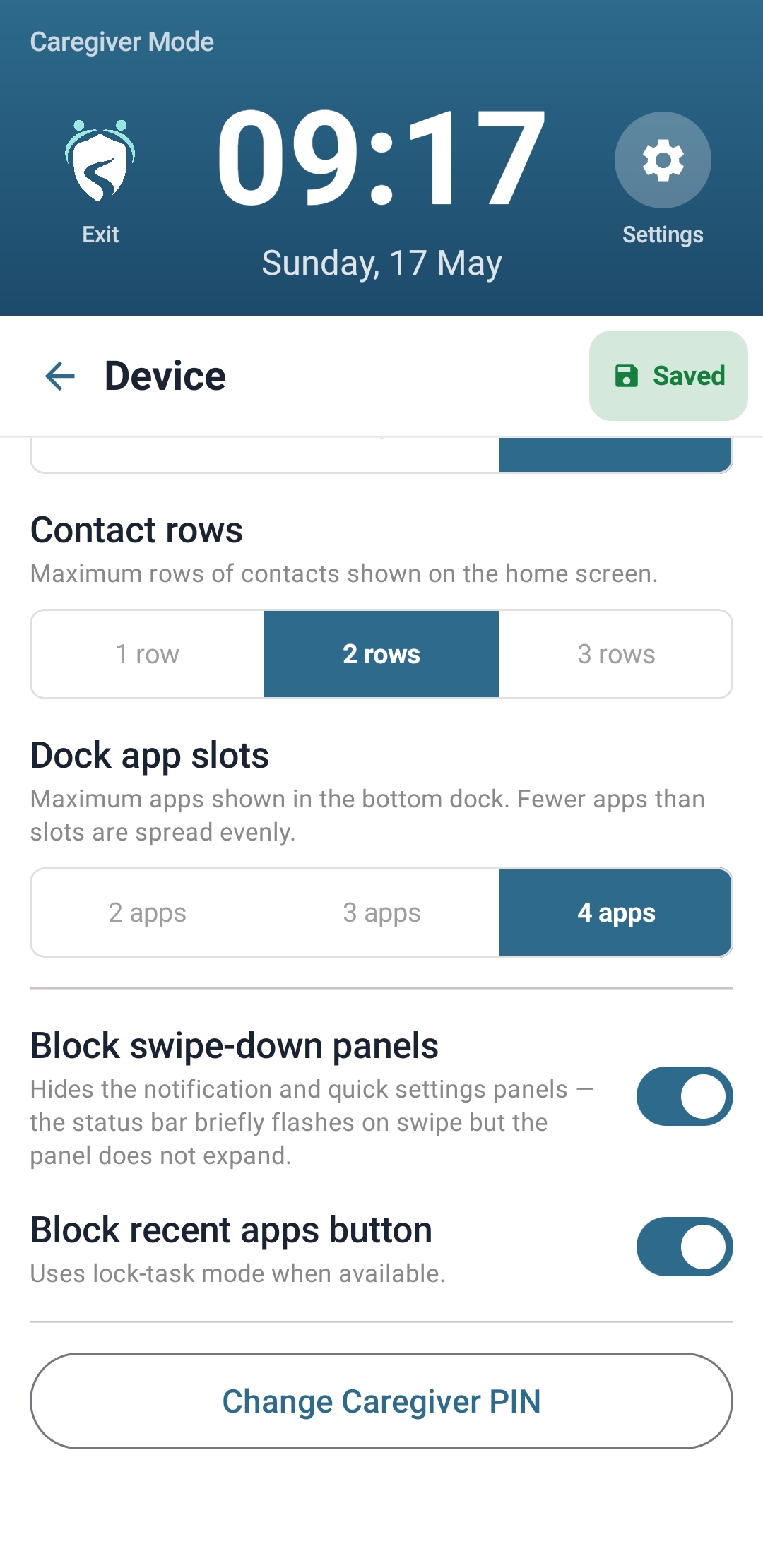
Mary can prevent the notification panel from opening when swiping down from the top, and block access to the recent apps button. This keeps users focused on Mary and makes it much harder to accidentally switch to another app.

  • 1 In caregiver settings, tap Device
  • 2 Enable Block swipe-down panels — the notification and quick settings panel won't open when swiping from the top
  • 3 Enable Block recent apps button — prevents switching to other apps via the navigation bar

This step is optional. If the person needs to receive notifications, or you use the recent apps button to access caregiver settings, leave these off. Both can be changed at any time from caregiver settings.

Mary Device settings showing Block swipe-down panels and Block recent apps button toggles

You're all set.

Mary is now set up and ready to use. If you ever need help or want to explore further settings, our support page is here.